A submission is complete only after the LMS records it
Selecting a file is not the same as submitting it. Students must complete the final submission action and then confirm that the assignment shows a submitted status or other visible confirmation.
MyNORSU assignments are connected to a specific course, section, teacher, due date, and point value. Before uploading anything, confirm that you are working inside the correct course and that the file matches the teacher’s instructions.
Do not wait until the final minute
File uploads can fail because of weak internet, an unsupported file, a large attachment, or a device problem. Submit early enough to correct an error before the deadline.
The assignment-submission process
Choose the correct course and assignment.
Read the instructions, due date, and file requirements.
Select the final file and wait for the upload to finish.
Submit once and verify that the LMS recorded it.
Before starting the assignment
Correct course
Confirm the course title, subject code, section, and teacher before opening the assignment.
Correct assignment
Check the assignment title and make sure it belongs to the expected lesson, topic, or activity.
Due date
Record the deadline and determine whether the teacher has given a specific submission time.
Required format
Check whether the teacher requires a document, image, PDF, presentation, link, or another format.
Materials and assignments are different
Course materials provide resources to review. Assignments are activities that may require a submission, score, and teacher feedback. Open the Assignments section when you need to send completed work.
Step 1: Find the correct assignment
Sign in to the MyNORSU LMS
Open lms.mynorsu.social and use the same approved account used for MyNORSU Social.
Open Assignments
Select Assignments from the LMS navigation, or open the correct course and locate its assignment list.
Select the assignment
Confirm the assignment title, course, teacher, due date, and current status before opening the submission area.
Step 2: Review all assignment details
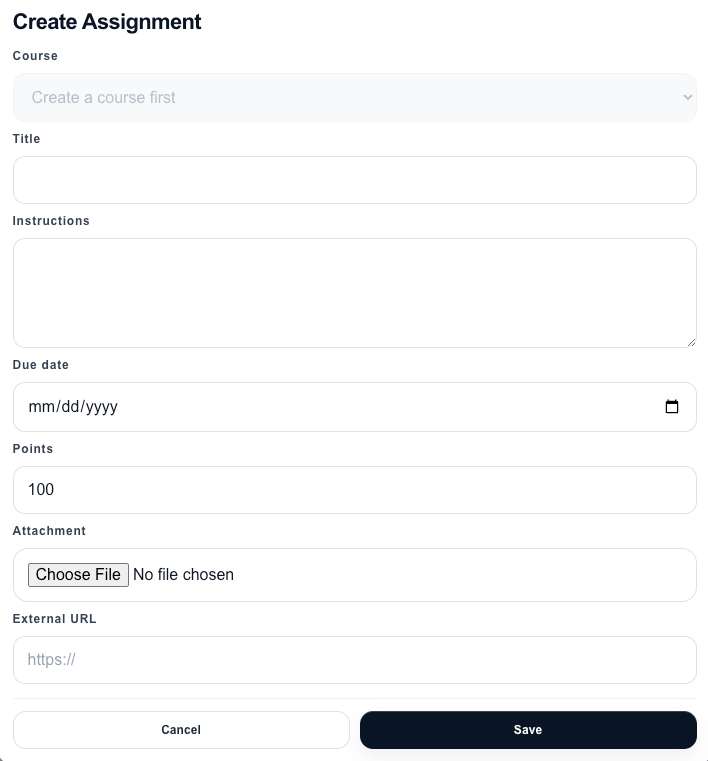
Read the entire assignment before preparing the file. Important requirements may appear in the instructions, attachment, or external link.
Confirms which task you are completing. Similar assignments may exist in different courses or sections.
Explain what to produce, how to format it, and what content or steps the teacher expects.
Shows when the work should be submitted. A late submission may be marked differently or may no longer be accepted.
Shows the maximum score available and may indicate the importance of the assignment.
May contain a worksheet, reference file, rubric, reading, template, video, or external instruction page.
Step 3: Prepare the final file
- Complete the work before opening the final submission step.
- Use the file type required by the teacher.
- Open the file once to confirm it is not damaged or blank.
- Check that every required page, image, or answer is included.
- Rename the file clearly before uploading.
- Remove drafts or older versions from the upload folder to avoid selecting the wrong file.
- Keep a backup copy on your device or cloud storage.
Use a clear file name
A useful structure is LastName-FirstName-AssignmentTitle. Follow the teacher’s required naming format when one is provided.
Step 4: Upload and submit the assignment
Open the submission area
Select the submission or upload option inside the assignment. Confirm again that the assignment belongs to the correct course.
Select the final file
Use the file chooser to select the correct document or attachment from your device. Check the file name before continuing.
Wait for the upload to finish
Do not close the browser, refresh the page, or switch off the connection while the file is uploading.
Select Submit once
Click the final submit button once and wait for the LMS to finish recording the submission. Repeated clicks can create confusion.
Step 5: Confirm that the submission was recorded
Do not leave the assignment immediately after clicking Submit. Look for visible confirmation that the LMS has accepted the work.
- The assignment status changes to submitted, turned in, or an equivalent status.
- The submitted file name appears in the assignment record.
- A submission date or time is displayed.
- The assignment no longer appears as missing when the LMS provides that status.
- The submission count or dashboard summary updates when applicable.
A selected file without confirmation is not enough
If the page still shows no submitted file or no completed status, assume the submission was not recorded. Try again before the deadline or contact the teacher with evidence of the problem.
Replacing or resubmitting work
Whether a student can replace submitted work depends on the assignment settings and teacher instructions. Do not assume that uploading another file automatically replaces the first submission.
- Check whether the assignment still allows another submission.
- Ask the teacher before replacing work after the deadline.
- Use a revised file name so the correct version is clear.
- Confirm the new file and submission time after resubmitting.
- Do not delete the local backup of either version until grading is complete.
Common assignment-submission problems
The assignment does not appear
Confirm that you are enrolled in the correct course and that the teacher has published or released the assignment. Check the course, section, and term.
The upload does not finish
Check the internet connection, file size, and file condition. Try again from a stable connection without refreshing repeatedly.
The wrong file was selected
Stop before submitting when possible. If the wrong file was already submitted, check whether resubmission is allowed and contact the teacher immediately.
The file opens blank or damaged
Recreate or export the document again, open it on your device, and confirm that the content is complete before uploading the replacement.
The deadline has passed
Contact the teacher. The LMS may prevent late submission or record it as late. Do not claim a successful submission unless the LMS actually shows confirmation.
The page closed before confirmation appeared
Reopen the assignment and check its status. If there is no submitted file or submission time, submit again if the assignment is still open.
What to include when requesting help
- Your full name and MyNORSU account email.
- The complete course title, subject code, and section.
- The assignment title.
- The due date and approximate time of the attempted submission.
- The file name, type, and approximate size.
- The device and browser used.
- A screenshot of the error or missing confirmation with private information hidden.
Contact the teacher first for assignment-specific decisions. Send technical concerns to support@mynorsu.social. Never send your password.
Final submission check
Your assignment is properly submitted when all of the following are true:
- You opened the correct course and assignment.
- You read the instructions and checked the due date.
- You uploaded the final and correct file.
- The upload completed before you selected Submit.
- The LMS displays a submitted status, file name, or submission time.
- You kept a backup copy of the submitted work.