Grading accuracy starts when the assignment is created
The course, section, instructions, deadline, point value, and supporting files determine what students submit and how the work should be evaluated. Review those details before publishing the assignment.
The MyNORSU LMS separates assignment creation, student submission, draft grading, and grade release. This allows faculty to review work and correct mistakes before students see final results.
Do not release grades before checking the complete class
A released grade becomes visible to the student. Confirm scores, feedback, missing-work status, and the correct assignment before releasing results.
The assignment and grading workflow
Choose the course and define the task.
Make the assignment available to students.
Open submitted files and check completion.
Enter scores and useful feedback.
Publish verified results to students.
Before creating an assignment
Correct course
Confirm the subject, section, term, and school year before creating the assignment.
Clear outcome
Define what students must produce and what knowledge or skill the task measures.
Realistic deadline
Set a due date that matches the class schedule and gives students adequate preparation time.
Scoring method
Determine the maximum points and the criteria that will be used consistently across the class.
Use Materials for resources, Assignments for submitted work
Readings and reference files belong in Materials. Tasks requiring a deadline, student submission, score, or feedback should be created as assignments.
Step 1: Create the assignment
Sign in with the approved faculty account
Open lms.mynorsu.social and confirm that the correct faculty name and role are shown.
Select New assignment
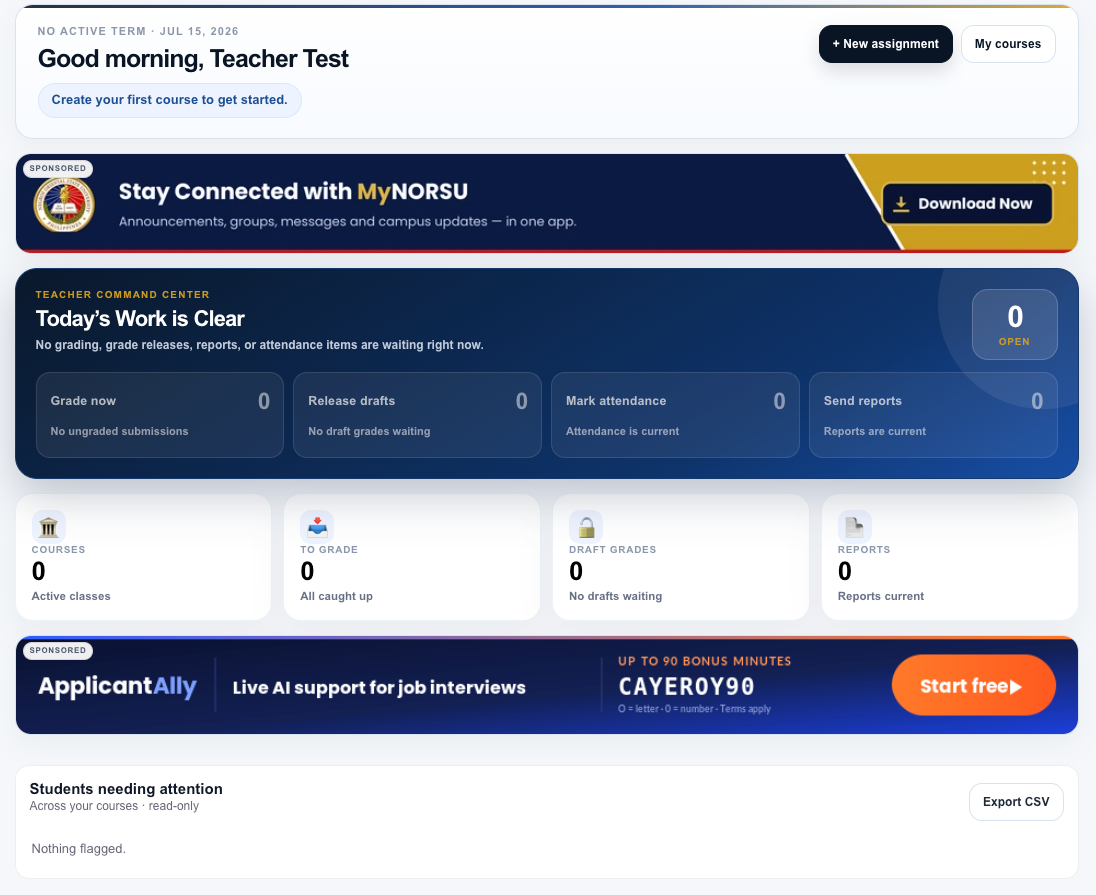
Use the New assignment button on the faculty dashboard or open the appropriate course and select its assignment-creation option.
Choose the correct course
Confirm the course title, subject code, section, school year, and term. An assignment created in the wrong course will be shown to the wrong class.
Step 2: Complete the assignment details
| Course | Select the exact class that should receive the assignment. |
|---|---|
| Title | Use a specific title students can recognize, such as “Module 2 Reflection Paper.” |
| Instructions | State what students must do, required content, format, submission method, and evaluation criteria. |
| Due date | Select the final submission date and confirm any required time. Avoid accidental past dates. |
| Points | Enter the maximum score and ensure it matches the gradebook or assessment plan. |
| Attachment | Add a template, rubric, worksheet, or reference file when students need it to complete the task. |
| External URL | Add a complete working link when the assignment depends on an outside resource. |
Write instructions that can stand on their own
Students should understand the task even if they read it outside class. Include the expected output, format, deadline, file naming rule, and grading criteria.
Step 3: Review and publish the assignment
Read the assignment as a student
Check that the task is understandable and that attachments and links open correctly.
Confirm the due date and points
Verify the deadline, maximum score, and course before saving or publishing.
Save once and confirm visibility
Select the save or publish action once, wait for confirmation, and verify that the assignment appears in the correct course.
Step 4: Review student submissions
The faculty dashboard may show work waiting under Grade now or a similar grading queue. Faculty can also open the assignment from the course and review its submissions.
The LMS has recorded a student submission. Open the attached file or submitted content before assigning a score.
No real submission and no saved grade exist for the assignment. Confirm this status before reporting missing work.
The submission was recorded after the deadline or according to the assignment’s late-work rules.
A score or feedback has been saved but has not yet been released for student viewing.
The verified score and feedback are visible to the student.
What to check in each submission
- Confirm the student name and correct assignment.
- Open the submitted file and verify that it is readable and complete.
- Check whether the required format and file naming rules were followed.
- Compare the work with the assignment instructions, rubric, or scoring criteria.
- Record concerns about blank, damaged, incorrect, or inaccessible files.
- Do not download or expose student work outside the approved academic purpose.
Do not grade only from the file name
Open the submission and confirm that it contains the correct work. A properly named file can still be blank, damaged, or belong to another assignment.
Step 5: Enter the score and feedback
Enter a valid score
Use the assignment’s maximum points. Check decimals, zeros, and transposed digits before saving.
Add specific feedback
Explain what was done well, what needs correction, and what the student should do next. Avoid vague comments that do not help learning.
Save the grade as a draft
Save the score and feedback without releasing them immediately when the rest of the class still needs review.
Manual or paper-based scores
Faculty may need to record a score for work completed outside the LMS, such as a paper submission, performance task, recitation, or in-class activity. When the LMS provides manual grading:
- Confirm the correct student and assignment.
- Enter the score based on the original assessment record.
- Add feedback or a note that identifies the assessment basis when appropriate.
- Check that the saved manual grade removes the item from missing-work reports when applicable.
- Keep the original paper or assessment evidence according to university policy.
Step 6: Review and release grades
Draft grades allow faculty to finish evaluation before results become visible. Use the dashboard’s draft-grade area or the course gradebook to review the complete set.
Check totals
Confirm that every score is within the maximum points and that no accidental values are present.
Check missing work
Verify which students truly have no submission and no saved grade.
Check feedback
Ensure comments belong to the correct student and do not expose another student’s information.
Release deliberately
Publish results only after the assignment, class, scores, and feedback have been checked.
After release, verify the student view
Confirm that the released result appears under the correct assignment and that students can see the intended score and feedback.
Common assignment and grading problems
The assignment was created in the wrong course
Stop before grading. Identify the correct course and avoid mixing submissions across sections. Correct or recreate the assignment carefully.
Students cannot see the assignment
Confirm that the course is active, students are enrolled, the assignment was saved or published, and the due date is valid.
A submitted file will not open
Record the issue, verify the file type, and ask the student for a corrected submission according to the teacher’s late-work or resubmission policy.
The wrong score was entered
Correct the draft before release. If the result was already released, update it promptly and provide accurate feedback or explanation when required.
Grades are saved but students cannot see them
The grades may still be drafts. Review the release controls and confirm that the intended results were published.
A student appears as missing despite paper work being graded
Confirm that the manual score was saved under the correct student and assignment. Missing work should mean there is no real submission and no saved grade.
What to include when requesting help
- Your faculty name and account email.
- The course title, subject code, section, and term.
- The assignment title and due date.
- The student name or account email when the issue affects one submission.
- Whether the grade is a draft or already released.
- A screenshot of the error with private information hidden.
- The device and browser being used.
Send technical concerns to support@mynorsu.social. Never send passwords or expose grades publicly.
Final grading check
The assignment cycle is complete when all of the following are true:
- The assignment belongs to the correct course and section.
- The title, instructions, deadline, points, and attachments are accurate.
- Every submission was opened and reviewed.
- Scores and feedback were entered under the correct students.
- Missing-work and manual-grade records were verified.
- Draft grades were checked before release.
- Released results appear correctly in the student view.