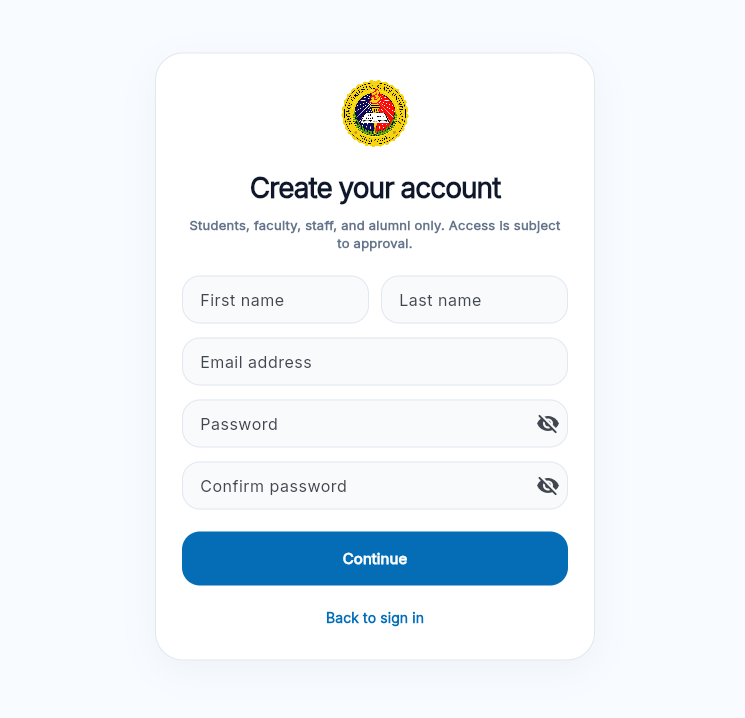
Approval begins with accurate information
The reviewer can only approve the role and identity presented in your account. Entering the correct name, email address, role, campus, college, program, section, or department is the fastest route to approval.
A pending account is not necessarily a failed account. It usually means the registration has been submitted and is waiting for an authorized reviewer to verify the information. The approval step helps prevent false profiles, incorrect faculty access, and accounts being connected to the wrong academic group.
Never create a second account while the first is pending
Duplicate accounts split your information across multiple records and make it harder to determine which account should be approved. Keep the original account and request a correction when something is wrong.
How the approval process works
Your registration has been received and is waiting for review.
An authorized reviewer checks whether the role and profile information are appropriate.
The account can use the functions assigned to its approved role.
Approval is based on the information available in the account. A reviewer may delay approval when details are incomplete, inconsistent, unverifiable, or assigned to the wrong role.
Profile details that must be correct
| Full name | Use the name that should appear in university records. Avoid nicknames, incomplete names, or decorative characters. |
|---|---|
| Email address | Use an active address that you control. This address is also used for sign-in and password recovery. |
| Role | Select student, faculty, staff, alumni, or another available role only when it accurately describes your relationship with the university. |
| Campus | Choose the campus connected to your current study, work, or authorized access. |
| College or department | Select the correct academic or administrative unit. Incorrect placement can affect visibility and permissions. |
| Program or section | Students should provide the correct program and section where requested so the account can be linked appropriately. |
Approval does not automatically enroll you in every LMS course
Account approval confirms your platform role. Course access still depends on the teacher creating or publishing the course and connecting the correct students or class group.
Complete your profile correctly
Use a working email address
Enter an address you can open. This is the address used to sign in and receive password-reset messages. Check for typing mistakes before continuing.
Enter your real full name
Use the name by which the university can identify you. Do not use a nickname, organization name, false identity, or shortened form that makes verification difficult.
Select the correct role
Your role determines what the platform may allow you to do. Students should not request faculty access, and faculty members should not register as students merely to bypass approval.
Complete your organizational information
Select the correct campus, college, program, section, or department. Review every selection before submitting the account.
Submit once and wait for review
After submission, allow the authorized reviewer to process the account. Repeated registrations do not accelerate approval.
What to do while your account is pending
- Keep access to the email address used during registration.
- Do not submit another account with a different email address.
- Check whether your profile contains the correct role and campus information.
- Allow time for the authorized reviewer to process pending accounts.
- Contact support when the delay is prolonged or you discover incorrect information.
Review time can vary according to the volume of registrations and the information that must be checked. A pending status by itself does not mean the account has been rejected.
How to correct inaccurate profile details
Correct the existing account rather than creating a new one. When requesting a correction, clearly identify which field is wrong and what it should say.
Protect your password
MyNORSU support may ask for the email address attached to your account, but it should not need your password. Never send passwords or verification codes in a support message.
Common reasons approval is delayed
The profile uses an incomplete or false name
Reviewers may be unable to connect the account to an actual university user. Request a correction to the real full name.
The wrong role was selected
A student account requesting faculty permissions requires correction. The same applies when faculty or staff choose a role that does not match their authorized function.
Campus, college, or program information is incorrect
Incorrect organizational details can place the account in the wrong group and may prevent the reviewer from confirming where it belongs.
The email address contains a typing error
An incorrect email address may prevent sign-in or password recovery. Report the mistake before creating another account.
Multiple accounts were submitted
Duplicate registrations create uncertainty about which record should remain active. Inform support which email address you intend to keep.
What to check after approval
Sign in to MyNORSU Social and review the account before moving to the LMS. Confirm that:
- Your full name is displayed correctly.
- Your role matches your actual university role.
- Your campus, college, program, section, or department is correct.
- You can sign in again after signing out.
- You can open the LMS using the same email address and password.
If the account is approved but the wrong dashboard or permissions appear, request a role correction. Do not try to solve a permission problem by opening another account.
How to request account help
Send a clear support request to support@mynorsu.social. Include:
- Your full name.
- The email address attached to the account.
- Your correct role and campus information.
- The specific profile detail that is wrong.
- The correct replacement information.
- A screenshot of the issue with private data hidden.
Final approval check
Your account is ready when all of the following are true:
- Your registration was submitted only once.
- Your name and email address are accurate.
- Your role and organizational details are correct.
- Your account shows an approved status.
- You can sign in to MyNORSU Social and access the LMS with the same credentials.