The correct access sequence
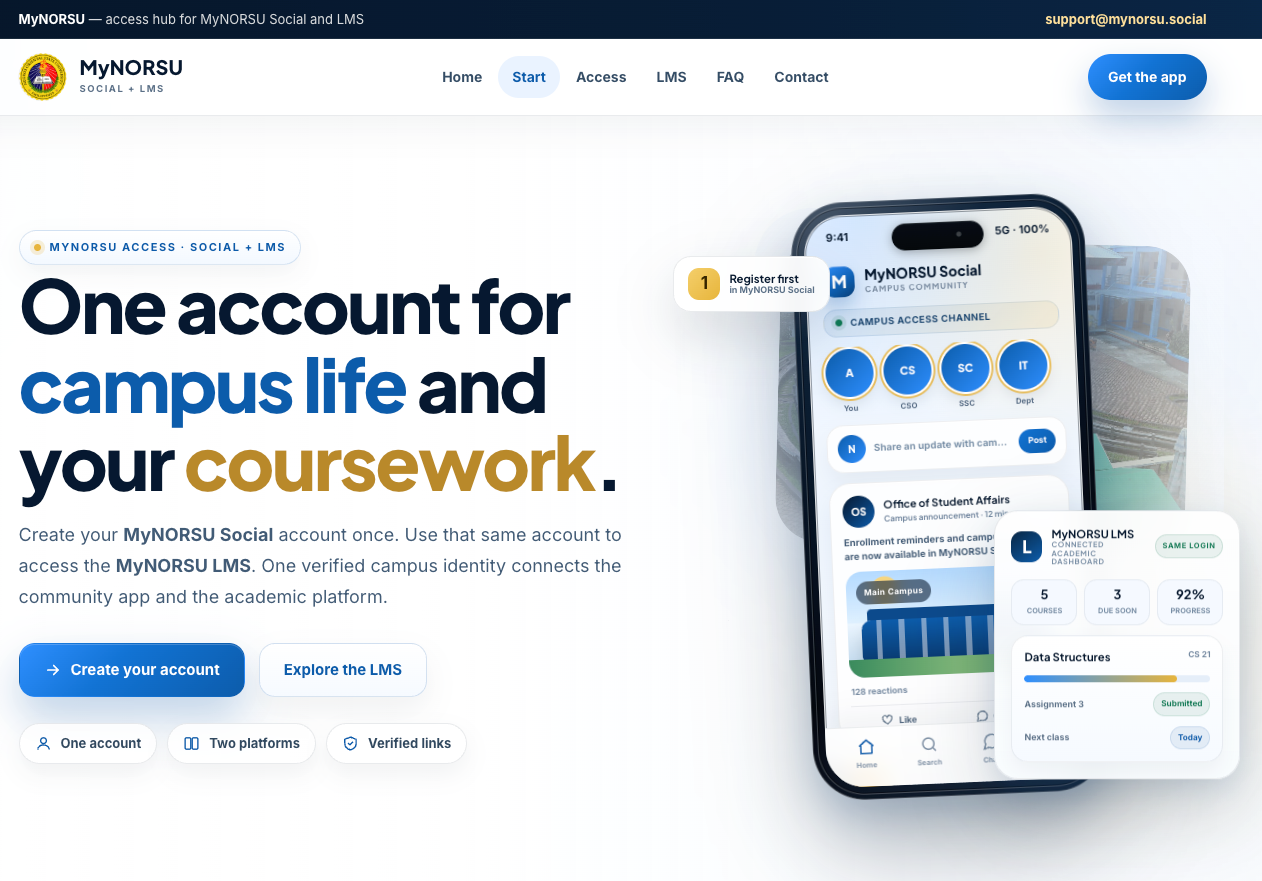
The process is simple when completed in the correct order: create the MyNORSU Social account, submit accurate profile information, wait for approval, sign in successfully, and then open the LMS using the same credentials.
This guide is for students, faculty members, and authorized university personnel who are creating a MyNORSU account for the first time or who are having trouble accessing the LMS. Following the correct sequence prevents duplicate accounts, incorrect roles, and avoidable sign-in problems.
Do not create a second account
If your account is pending approval, contains an incorrect role, or cannot access a course, do not register again. Duplicate accounts can delay approval and make course access harder to correct. Request support for the original account instead.
Before you start
Prepare the correct information before opening the registration form. Your profile information is used to identify your role and connect you to the correct campus, college, program, department, section, or course.
Accurate information matters because account approval and platform permissions depend on the role and organizational details recorded in the profile. Incorrect information may prevent the correct dashboard or courses from appearing.
Register your account step by step
Open the official MyNORSU Start page
Begin at mynorsu.social/start/. This page provides the official access routes for MyNORSU Social and the MyNORSU LMS. Avoid unknown links that ask for your login details.
Open MyNORSU Social on your device
iPhone and iPad users should install MyNORSU Social from the official Apple App Store. Android users should install it from Google Play. Desktop users can open the official web version. Select the registration or account-creation option when the platform opens.

Using a computer? Open web.mynorsu.social.
Enter your correct account information
Enter your active email address, create a secure password, provide your correct full name, and complete all required profile fields. Review every field before submitting the registration.
Select the correct role
Students must select the student role and provide the correct academic information. Faculty members must select the faculty role and provide the correct college or department information. Do not select faculty access unless you are an authorized faculty member.
Submit the account for approval
Submit the completed account and wait for the authorized reviewer to approve it. Approval helps protect the campus community from unauthorized or incorrectly identified accounts.
Sign in to MyNORSU Social
After approval, sign in using the same email address and password entered during registration. Review your profile and confirm that your role, campus, academic information, and name are correct.
Open the MyNORSU LMS
Go to lms.mynorsu.social and sign in with the same email address and password. You do not need to create a separate LMS account.
Choose the correct role
Students
Students should register with their correct academic details. The information in the profile helps determine where the account belongs and supports course or class linking. After approval and enrollment, the LMS can display available courses, materials, assignments, submissions, feedback, and grades.
Faculty members
Faculty members should register under the faculty role and use accurate college or department information. Authorized faculty access may include course creation, learning materials, assignments, attendance, grading, calendars, and class communication.
Wrong role or academic information?
Do not create a replacement account. Contact support and request a correction to the existing profile. Keeping one account preserves its approval status and connections.
What happens during approval
Account approval is a verification step. It allows authorized reviewers to confirm that the information submitted is appropriate for the requested role and campus context.
While your account is waiting for approval:
- Do not create another account using a different email address.
- Keep access to the email address used during registration.
- Check that your name, role, campus, program, or department is correct.
- Wait for the authorized reviewer to complete the review.
- Contact support only when the account appears to be delayed or contains incorrect information.
Approval time may vary depending on the number of pending registrations and whether the submitted information can be verified.
Access the LMS with the same account
Once your MyNORSU account is approved and working, open the LMS and enter the same email address and password. The MyNORSU LMS does not require a second registration.
Students should see the academic tools and courses made available to their accounts. Faculty members should see the teaching tools permitted for their approved roles. A successful login does not automatically guarantee that every course will already be visible; courses must also be created, published, and connected to the correct users.
Security rule
MyNORSU support may ask for information needed to locate your account, but legitimate support should never require your password. Do not send passwords, verification codes, or private records in screenshots.
Common registration and login problems
The LMS says my login is incorrect
Confirm that you are using the exact email address and password created for MyNORSU Social. Check for typing errors, accidental spaces, and incorrect capitalization. First confirm that the same credentials work in MyNORSU Social.
My account is still waiting for approval
Do not register again. Confirm that the profile contains accurate information. If the delay continues, contact the appropriate university representative or MyNORSU support and provide the email address connected to the account.
I selected the wrong role, campus, or program
Request a correction to the existing profile. A second account can create confusion and may not be linked to the correct courses or permissions.
I forgot my password
Use the available password-reset process for the email address connected to your account. Check the spam or junk folder if the reset message does not appear in the inbox.
I can sign in, but I cannot see my course
Course visibility depends on enrollment, publication, and account linking. Confirm that the teacher has created or published the course and that your account belongs to the correct class, section, or program.
The app or LMS page does not load correctly
Confirm that your internet connection is stable, refresh the page, and use an updated browser. If the problem continues, record the device, browser, time, and error message before contacting support.
Protect your account
- Never share your password with classmates, teachers, or support staff.
- Use only official MyNORSU links.
- Do not post screenshots showing passwords, reset links, verification codes, student numbers, or private records.
- Sign out after using a shared or public computer.
- Use a password that is difficult to guess and different from passwords used on other websites.
- Report suspicious login requests, false profiles, or impersonation attempts.
What to include when requesting help
A complete support request makes it easier to identify the problem without exposing sensitive information. Include:
- Your full name.
- The email address connected to the MyNORSU account.
- Your role, campus, college, program, section, or department.
- A clear description of what happened and what you expected to happen.
- A screenshot of the error with passwords and private information hidden.
- The device and browser you were using.
Send account and access concerns to support@mynorsu.social.
Final account check
Your setup is complete when all of the following are true:
- Your MyNORSU Social account has been created.
- Your profile information and role are correct.
- Your account has been approved.
- You can sign in to MyNORSU Social.
- You can open the LMS using the same credentials.